


Apple’s AirPods have become the go-to wireless earbuds for iPhone and Mac users seeking convenience and quality audio. Whether you own the budget-friendly AirPods 4, the feature-rich AirPods Pro 3, or the premium AirPods Max 2, you now have the power to shape how your music sounds through custom equalizer controls. This guide walks you through practical strategies to optimize your listening experience.
Understanding the Three-Band EQ System
The custom EQ feature available on compatible AirPods models uses a straightforward three-band equalizer that adjusts lows, mids, and highs. Unlike complex professional audio tools, Apple’s approach focuses on simplicity without sacrificing effectiveness. The low-frequency band controls bass and kick drums that you feel as much as hear. The midrange covers vocals and most instruments, while the high-frequency band enhances brightness and detailed sounds like cymbals and upper vocal notes. Starting with this foundation helps you understand which slider to move when you want to change specific elements of your music.
Tip 1: Verify Device and Firmware Compatibility
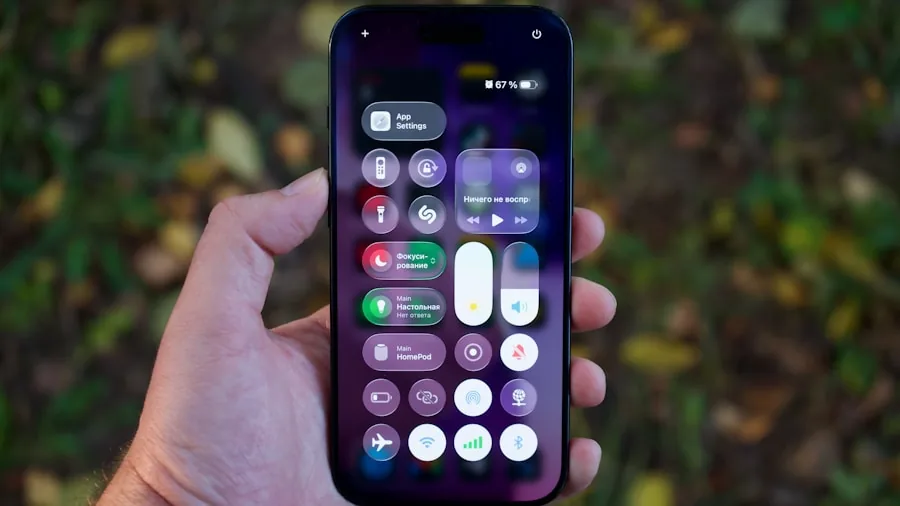
Custom EQ is currently available on AirPods models equipped with Apple’s H2 chip, including AirPods Pro 2, AirPods Pro 3, AirPods 4, and AirPods Max 2. You’ll also need to run the latest beta version of iOS, iPadOS, or macOS on your device. Before you start adjusting settings, ensure both your AirPods and connected device are fully updated. Place your earbuds in their charging case near your iPhone, iPad, or Mac to allow automatic firmware installation to occur.
Tip 2: Navigate to the Equalizer Settings Correctly
Open the Settings app on your device and locate your AirPods settings page. From there, navigate to Audio & Routing, then look for the Equalizer submenu. If this option doesn’t appear immediately, scroll down and enable the AirPods Beta Updates toggle to unlock the feature. This straightforward menu path ensures you access the right controls without confusion.
Tip 3: Start with the Recommended Profile
Before diving into custom adjustments, spend time listening with the default Recommended profile enabled. This baseline setting is tuned specifically for your AirPods model. Newer models like the AirPods Pro 3 deliver deeper bass and fuller sound due to their in-ear seal design, while the AirPods 4 produce a different sonic character. Familiarizing yourself with the standard sound helps you recognize what changes the EQ sliders actually create.
Tip 4: Make Real-Time Adjustments While Listening
The best way to dial in your perfect sound is to play a favorite track while actively adjusting the equalizer sliders. Move one band at a time and listen for the immediate difference. Some listeners prefer maximum bass for hip-hop or electronic music, while others boost the midrange to make vocals pop or increase the highs for acoustic guitar detail. This hands-on experimentation takes only minutes and reveals your personal audio preferences more accurately than reading descriptions alone.
Tip 5: Know How to Reset and Start Over
Made a slider adjustment you regret? A handy Reset button instantly returns all three frequency bands to a neutral flat EQ. This feature means you can experiment freely without worry. When you find settings you love, they automatically save to your AirPods, not your device, so you can check out resources on the best Bluetooth headphones for every budget if you’re curious about your options.
Tip 6: Avoid Conflicting EQ Settings

Be aware that your AirPods EQ settings are separate from the equalizer inside Apple Music and other audio adjustment options throughout your system. If you use Apple Music, navigate to Settings, then Apps, then Music, then EQ to ensure that app-level adjustments aren’t competing with your AirPods customization. Similarly, check Settings, Accessibility, Audio & Visual, and Headphone Accommodations to disable any conflicting audio effects. Layering multiple EQ adjustments creates unpredictable sound that won’t reflect your true preferences. For safe listening practices alongside your custom sound settings, review safe listening guidelines to protect your hearing.
Tip 7: Enjoy Your Profile Across All Connected Devices
Your custom EQ settings are stored directly on the AirPods themselves, not on individual devices. This means when you pair your earbuds with your iPad, Mac, or even an Android phone, they’ll deliver the exact same audio profile you customized. This cross-device consistency makes your custom EQ far more valuable than settings locked to a single device. You’re building a personalized listening experience that travels with your AirPods wherever you go.
Mastering your AirPods’ custom EQ puts professional-level audio control directly in your hands. By understanding the three-frequency model, experimenting methodically, and avoiding conflicting settings, you’ll discover the perfect sound for your ears and your music.






Write Your Review
No reviews yet. Be the first to share your experience!