


If you own a pair of AirPods, you may eventually encounter a frustrating issue where only one earbud produces sound while the other stays silent. This problem is less common than both earbuds failing at once, but it’s definitely solvable with the right approach. Understanding what causes this issue and how to fix it can save you time and money, especially considering AirPods now start at $129 and up, making them a significant investment worth protecting.
When one of your AirPods stops working, the culprit is often related to charging rather than a hardware defect. Start by examining the charging case and both earbuds carefully. Debris and grime can accumulate inside the case over time, particularly in the bottom section where the earbuds make contact for charging. Take a moment to clean out the charging port and the interior of the case using a soft, dry cloth. This simple step frequently resolves the issue without requiring any technical troubleshooting.
Next, place both AirPods in the case and let them charge for at least 30 seconds. Then open the case near your iPhone, and a pop-up window should appear displaying the battery status of both the case and each earbud. If you find yourself checking the battery status frequently, consider adding a Batteries widget to your iPhone’s home screen for quicker access. After confirming that the charging status looks normal, test the non-functioning AirPod by itself while keeping the working one inside the closed case. Charge both for another 30 seconds and test again.
When You Need to Reset Your AirPods
If cleaning and charging don’t solve the problem, a factory reset may be necessary. The reset process varies slightly depending on which AirPods model you own. For AirPods 3, AirPods Pro 2, and earlier generations, start by putting your AirPods in the case with the lid closed. Wait 30 seconds, then navigate to Settings, select Bluetooth on your iPhone, and look for your AirPods in the device list. Tap the information icon next to them and choose Forget This Device. If your AirPods don’t appear in the Bluetooth menu, open the case, hold the circular setup button on the back for 15 seconds, and wait for the status light to flash amber and white before following the on-screen pairing instructions.
If you have newer models such as AirPods 5, AirPods 4, or AirPods Pro 3, the reset process is similar but uses a different button mechanism. Instead of holding the button, double-tap the front of the case while the status light is active. Then double-tap again when the light flashes white, and repeat a third time when the light flashes more rapidly. You should see the same amber-to-white light pattern, followed by on-screen setup instructions to complete the process.
Additional Troubleshooting and Maintenance Tips
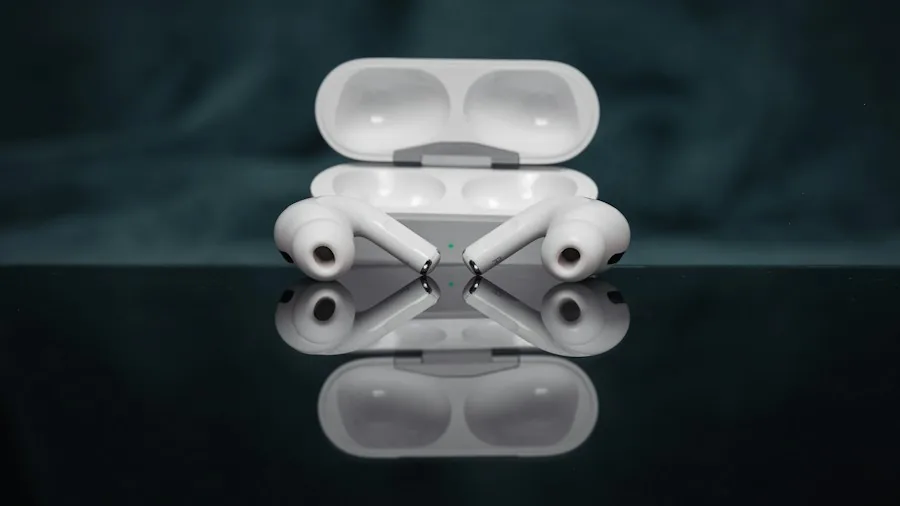
If your AirPods still aren’t working after reset and charging attempts, take a closer look at both earbuds individually. Physically compare the non-working earbud with the functioning one to spot any visible damage or debris. Clean the speaker mesh on each AirPod using a soft cloth, removing any particles that may be blocking sound output. You should also inspect the ear tips themselves and consider replacing them if they’re torn, cracked, or no longer provide a secure fit in your ear canal.
Charge your AirPods thoroughly once more after cleaning, and restart your iPhone to rule out any software-related issues on your device’s end. Try playing audio from a different source or app to confirm that the problem isn’t specific to one particular application. These steps help isolate whether the issue lies with the AirPods themselves or with your iPhone’s settings.
In some cases, you might notice that audio seems unbalanced rather than completely silent in one ear. If this describes your situation, head to Settings, then Accessibility, then Audio & Visual on your iPhone. Locate the Balance slider and ensure it’s positioned in the center of the spectrum. An off-center balance slider can create the impression that one AirPod isn’t working when it’s actually just receiving quieter audio. For users exploring other wireless earbud options, understanding these common issues can inform your purchasing decision if you decide to try a different brand.
Most single-AirPod failures resolve through cleaning, charging, and resetting. However, if you’ve completed all these steps and one AirPod still won’t produce sound, you may have a hardware issue that requires professional service or a replacement through Apple’s support channels. Keeping your AirPods clean and properly charged throughout their lifespan helps prevent many of these problems from occurring in the first place.






Write Your Review
No reviews yet. Be the first to share your experience!