
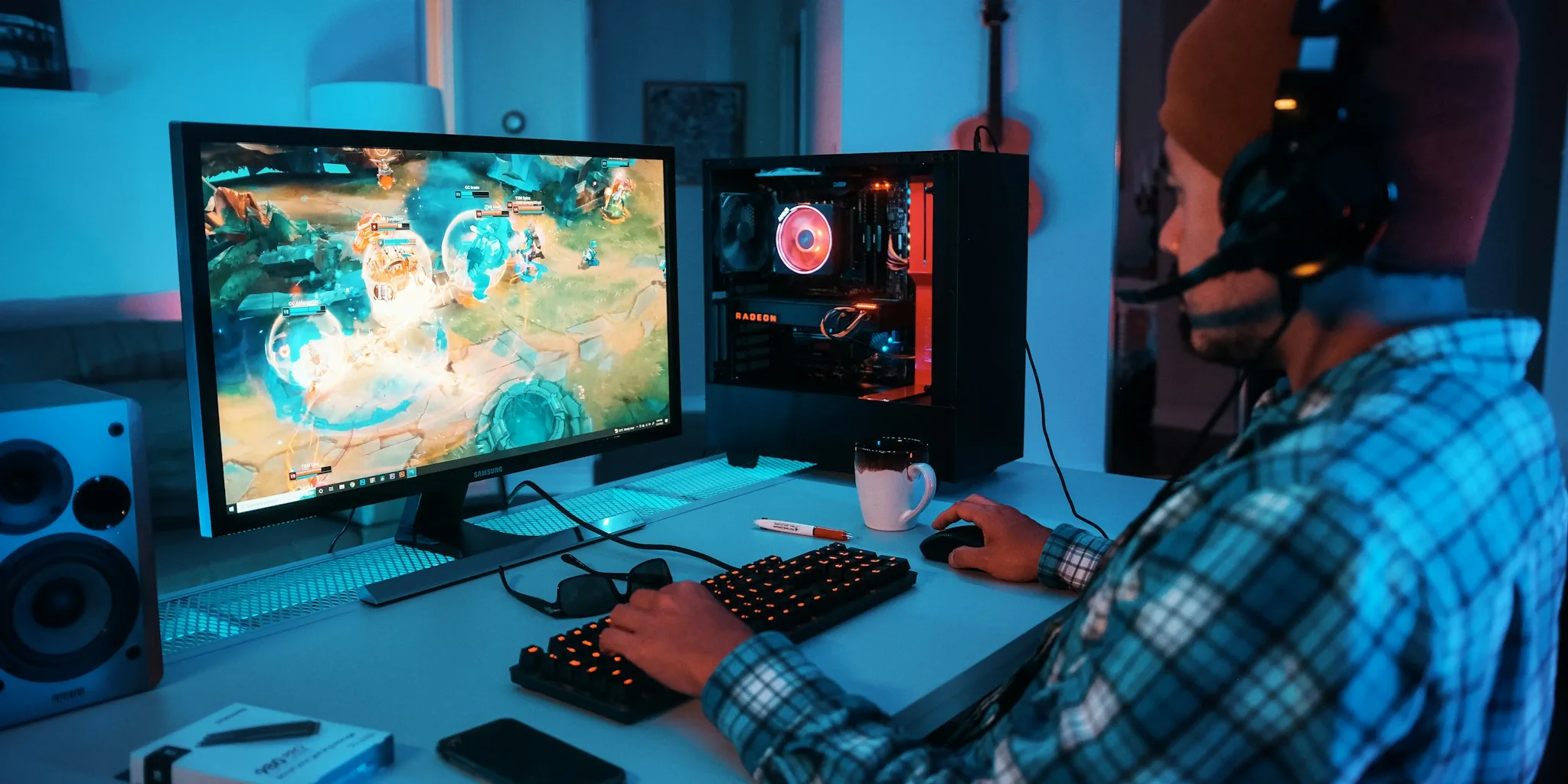

Why Bluetooth Headphones Don’t Work with Xbox Series X
Unlike smartphones and laptops that seamlessly pair with Bluetooth devices, the Xbox Series X lacks built-in Bluetooth headphone support. This limitation frustrates gamers who want to enjoy immersive sound without disturbing others. The core issue is latency: the wireless delay introduced by Bluetooth can throw off your gameplay, especially in rhythm-based games where audio timing matters. Fortunately, several workarounds let you use headphones with your console.
1. Invest in Xbox Wireless Headsets for Premium Audio
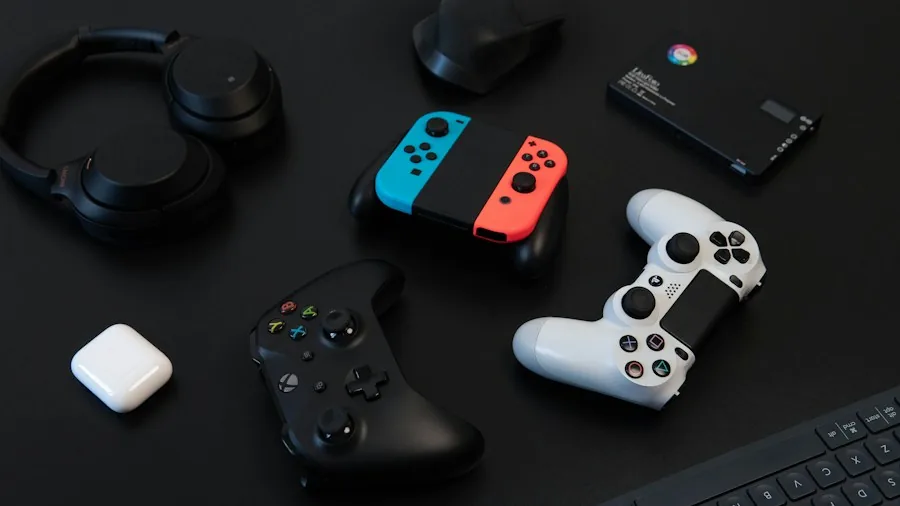
The official Xbox Wireless Headset ($120) uses Microsoft’s proprietary wireless standard instead of Bluetooth, eliminating latency problems. These headphones deliver reliable, low-delay audio that keeps sound synchronized with on-screen action. Third-party manufacturers like Audeze and SteelSeries also produce Xbox-compatible wireless headsets licensed by Microsoft, though they typically cost as much or more. If you prioritize wireless convenience and pristine sound quality, this is your most direct solution.
2. Use a Bluetooth Adapter with Your Controller
Bluetooth adapters designed for the Xbox controller’s headphone jack act as a middleman, converting your wireless headphones into controller-compatible devices. These affordable accessories plug directly into your controller and transmit audio from the console. While they’re cheaper than buying new headphones, they may still introduce minor latency depending on the adapter quality. This option works best if you already own quality Bluetooth headphones and want to repurpose them for gaming.
3. Connect Through Your Smart TV
If your TV supports Bluetooth transmission, you can route your Xbox Series X audio through it, then pair your headphones with the TV instead. Set your console to output sound to the television, and the TV acts as a Bluetooth relay. This method requires a compatible smart TV and adds an extra step to your setup, but it’s a budget-friendly option if you already have the hardware. The tradeoff is potential audio delay inherited from both the TV and Bluetooth protocols.
4. Choose a Dedicated Low-Latency Dongle
Premium headphones like those from SteelSeries come with proprietary low-latency dongles that connect via USB to your Xbox. These specialized adapters use optimized wireless protocols designed specifically for gaming, offering superior sound quality and minimal delay compared to standard Bluetooth. The downside is cost: headphones with high-end dongles rank among the most expensive options available. Reserve this choice for serious audiophiles and competitive gamers willing to invest.
5. Go Wired for Zero Latency
The simplest and cheapest solution is connecting your headphones directly to your Xbox controller’s audio jack using a wired cable. Many wired headphones deliver excellent sound with absolutely no latency, making them ideal for rhythm games and fast-paced titles. Some wireless headphones include an aux cable as a backup option. If your headphones support a 3.5mm connection, this remains the most reliable and affordable gaming solution.
6. Understand the Latency Tradeoff
Every wireless solution introduces some degree of audio delay, measured in milliseconds. While most people won’t notice minor delays during casual play, rhythm games and competitive shooters where audio timing is critical will expose even small lags. Bluetooth typically adds 150-300 milliseconds of latency, while Xbox Wireless and proprietary dongles reduce this to 20-50 milliseconds. Wired connections have zero latency. Choose your connection method based on the game types you play most.
7. Plan Your Budget and Use Case
Your best choice depends on what you’re willing to spend and how you game. Budget gamers should use wired headphones connected to the controller. Mid-range buyers might invest in a Bluetooth adapter or USB dongle. Serious gamers can justify the premium Xbox Wireless Headset or high-end licensed alternatives. Consider whether you need wireless freedom or if wired convenience works for your setup. Test different solutions if possible before committing to an expensive purchase.






Write Your Review
No reviews yet. Be the first to share your experience!