
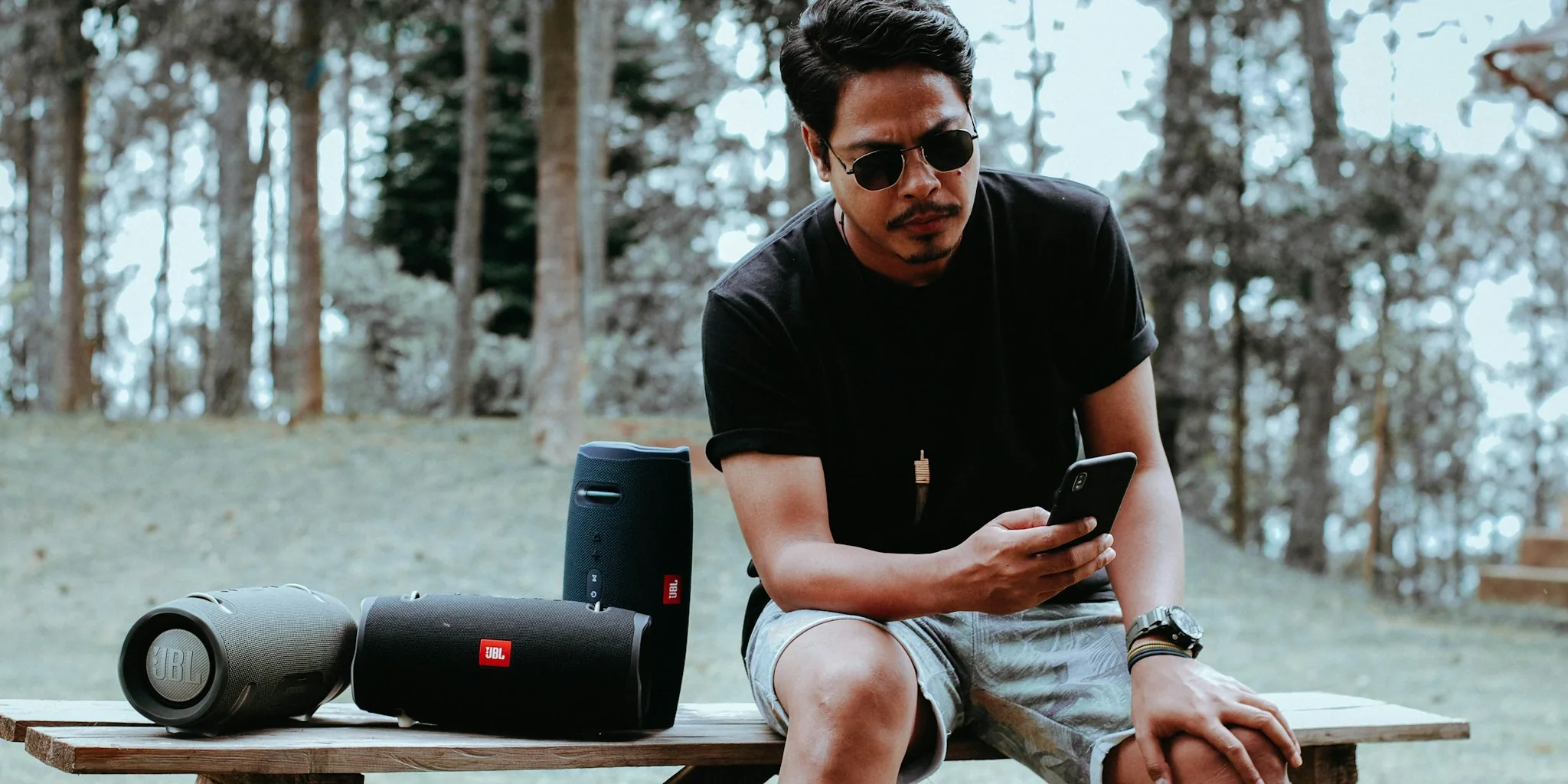

Bluetooth speakers are wonderfully convenient, but wireless technology comes with its own set of challenges. When your speaker cuts out, crackles, or refuses to play audio altogether, the frustration can be real. The good news is that most issues are fixable without professional help. By understanding where problems originate, you can get back to enjoying your music quickly.
Restart Both Devices First
Before diving into complex troubleshooting, start with the simplest fix: restart everything. Power off your Bluetooth speaker completely, then turn it back on. Do the same with your phone, tablet, or computer. This single step resolves many temporary connection glitches caused by minor software bugs. Wait a full 30 seconds before turning devices back on to ensure a clean restart.
Reconnect or Forget and Re-Pair
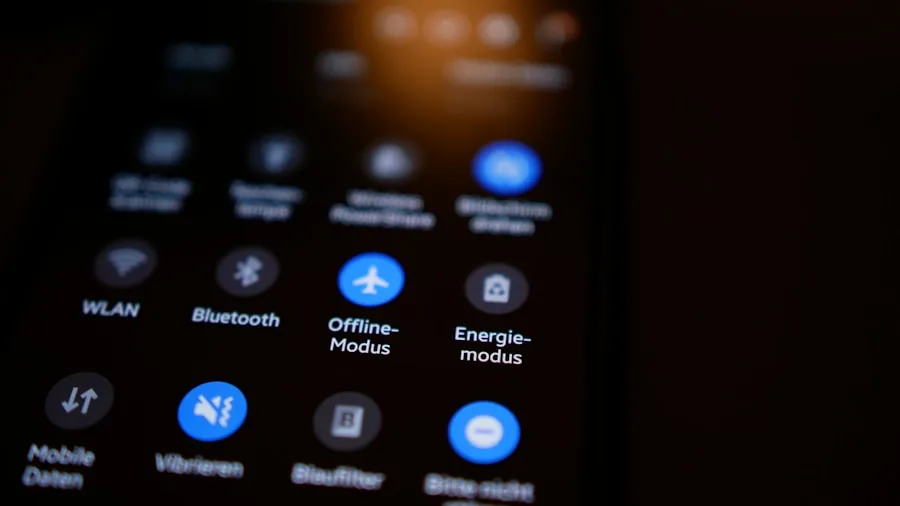
If your speaker and phone have been paired before but won’t connect now, try manually reconnecting through your device’s Bluetooth settings. On iPhone, open Settings, tap Bluetooth, find your speaker under My Devices, and tap it to reconnect. Android users should swipe down from the top, press and hold the Bluetooth icon, and select their device under Saved devices.
If manual reconnection fails, remove the pairing entirely and start fresh. On iPhone, tap the info icon next to your speaker’s name and select Forget This Device. Android users should tap the settings gear next to the speaker name and choose Forget. Then put your speaker into pairing mode (check your manual for instructions) and reconnect it like a brand-new device. Sometimes toggling Bluetooth off and back on after pairing helps establish a stable connection.
Check Your Volume Levels on Both Devices
When audio won’t play or sounds incredibly faint, the problem often sits right in front of you: the volume. Many people forget that older Bluetooth speakers use independent volume controls separate from your phone’s volume. Your phone might be at full volume while your speaker is set to just 5 percent. Check the physical volume buttons or knobs on your speaker itself, and ensure it matches your desired listening level. For these models, try setting one device to maximum and using the other for fine-tuning.
Confirm Your Speaker Is Set as the Audio Output
Your speaker may be connected without actually receiving audio. On Windows or macOS, open your audio settings and explicitly select your Bluetooth speaker as the output device instead of built-in or wired speakers. Android users should visit Settings, go to Connected Devices, tap the gear next to their Bluetooth device’s name, and ensure both Media audio and Phone audio are enabled.
Here is a practical trick: press the Play button directly on your speaker itself rather than on your phone. This can jumpstart audio playback when nothing else works.
Move Closer and Remove Interference
Bluetooth range depends on your speaker’s model and Bluetooth version. Newer speakers with Bluetooth 5.0 can reach roughly 100 feet indoors, while older models max out around 30 feet. Metal objects, walls, and physical distance all weaken the signal. Move your speaker and connected device into the same room, away from metal obstacles. If you’re in a crowded area with many other wireless signals, relocate to a clearer space. Additionally, disconnect any unnecessary Bluetooth devices (smartwatches, earbuds, keyboards) that are paired to your phone, as too many simultaneous connections can degrade audio quality for all of them.
Charge Your Speaker and Avoid Maximum Volume
A low battery significantly impacts both range and sound quality. Charge your speaker regularly and avoid pushing the volume to maximum levels, where distortion becomes more noticeable. These two habits together often resolve crackle and audio dropout issues.
Update Firmware and Factory Reset When Needed
Check whether your speaker’s manufacturer offers a dedicated app. Many brands provide apps that let you adjust audio settings and install firmware updates. Download any available updates and install them. If problems persist, perform a factory reset using the method specified in your speaker’s manual, whether that is through the app, a pinhole button, or a combination of physical buttons. To identify whether the fault lies with your speaker or your phone, connect the speaker to different devices. If buzzing occurs across multiple phones and computers, your speaker likely has an internal issue or is affected by nearby interference. If the problem only happens with one specific device, that device is causing the trouble.
For those shopping for a new speaker, explore the best portable speakers for travel and outdoor adventures, or if you need something more permanent, check out options tailored for every budget and room size. Older speakers, especially those more than a decade old, may lack support for modern Bluetooth standards and simply aren’t worth repairing. An upgrade to a newer model will provide far better reliability and audio quality.






Write Your Review
No reviews yet. Be the first to share your experience!