
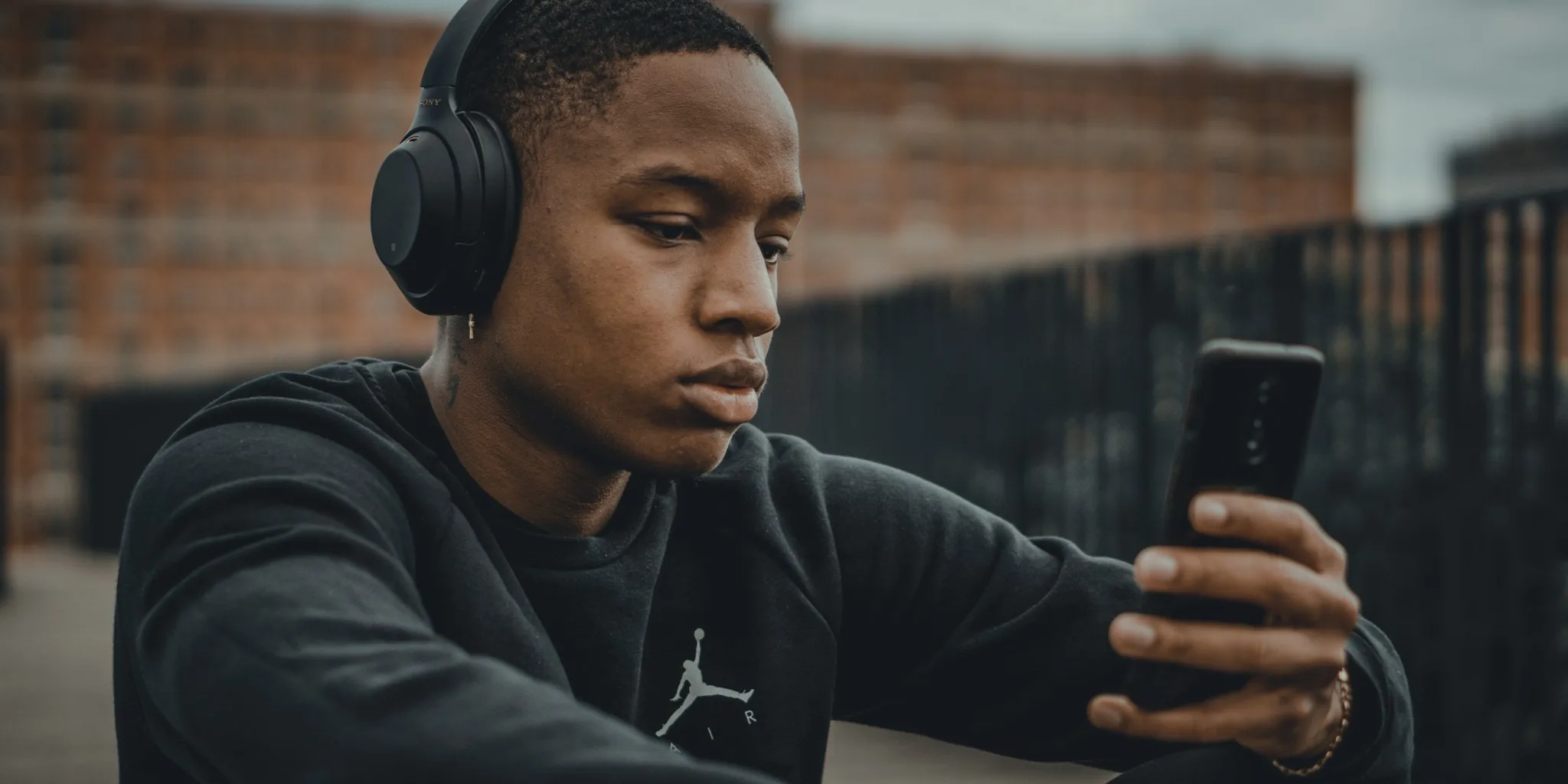

Boost Your iPhone Audio Experience
Your iPhone delivers solid sound right out of the box, but with a few strategic adjustments, you can unlock significantly better audio quality whether you’re using headphones or speakers. The key is understanding both the hardware and software tools at your fingertips. Let’s explore practical ways to elevate your listening experience.
Optimize Streaming Quality Settings
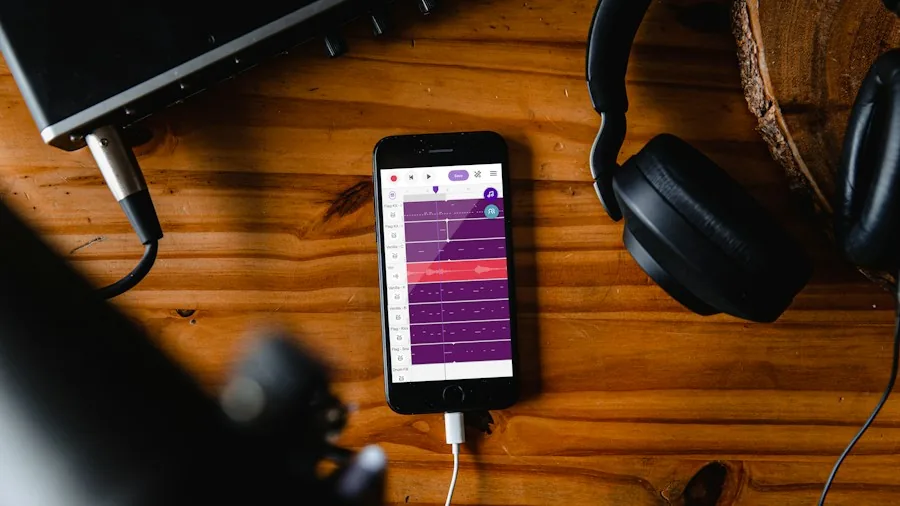
The foundation of great audio starts with your streaming service settings. In Apple Music, navigate to Settings, then Apps, then Music. Select Audio Quality and configure your preferences for mobile data, Wi-Fi, and downloads. High Quality strikes the best balance between data usage and sound clarity for most listeners. For Spotify users, open your profile, go to Settings and Privacy, then Playback, and adjust Media Quality. Premium subscribers should select Very High for Wi-Fi streaming to experience noticeably cleaner audio.
Leverage Equalization Controls
Equalizers let you tailor frequencies to match your personal taste and the type of content you enjoy. Apple Music provides preset EQ options under the same Settings path where you adjusted audio quality. Simply select the profile that matches your music genre. Spotify users have more flexibility: tap the Equalizer in Playback settings to choose presets or manually adjust individual frequency sliders. Experiment with these settings while wearing your headphones to find what sounds best to your ears. This small tweak often produces noticeable improvements in clarity and depth.
Consider Lossless Audio with the Right Equipment
Both Apple Music and Spotify Premium offer lossless audio, which preserves the full original data for CD-quality sound. However, lossless audio requires wired headphones with a quality digital-to-analog converter (DAC), since Bluetooth connections don’t support lossless transmission. If you’re serious about audio fidelity, investing in a good DAC and quality wired headphones makes lossless worth pursuing. Be aware that lossless files consume significantly more data and storage space than standard options.
Use Accessibility Features for Audio Enhancement
Your iPhone’s Accessibility settings contain powerful audio optimization tools that many users overlook. Head to Settings, Accessibility, then Audio and Visual. Here you’ll find Phone Noise Cancellation, which removes ambient background noise during calls and audio playback on compatible devices. The Balance slider lets you adjust the left and right channel levels if you notice uneven sound distribution. If you’re using supported Apple headphones, access Headphone Accommodations to boost specific frequencies or amplify soft sounds, making dialogue and subtle details more audible. These settings are especially helpful for anyone who struggles with certain frequency ranges.
Maintain Speaker and Headphone Cleanliness
Hardware cleanliness directly impacts audio quality. Speaker grilles and mesh on headphones collect dust and debris that muffle sound over time. For your iPhone’s speaker, gently clean the grille using a soft brush or specialized cleaning putty. For wireless and wired headphones, use a dry cloth to wipe external surfaces and compressed air for hard-to-reach speaker openings. This simple maintenance prevents audio degradation and extends the life of your equipment.
Choose Quality Headphones for Your Needs
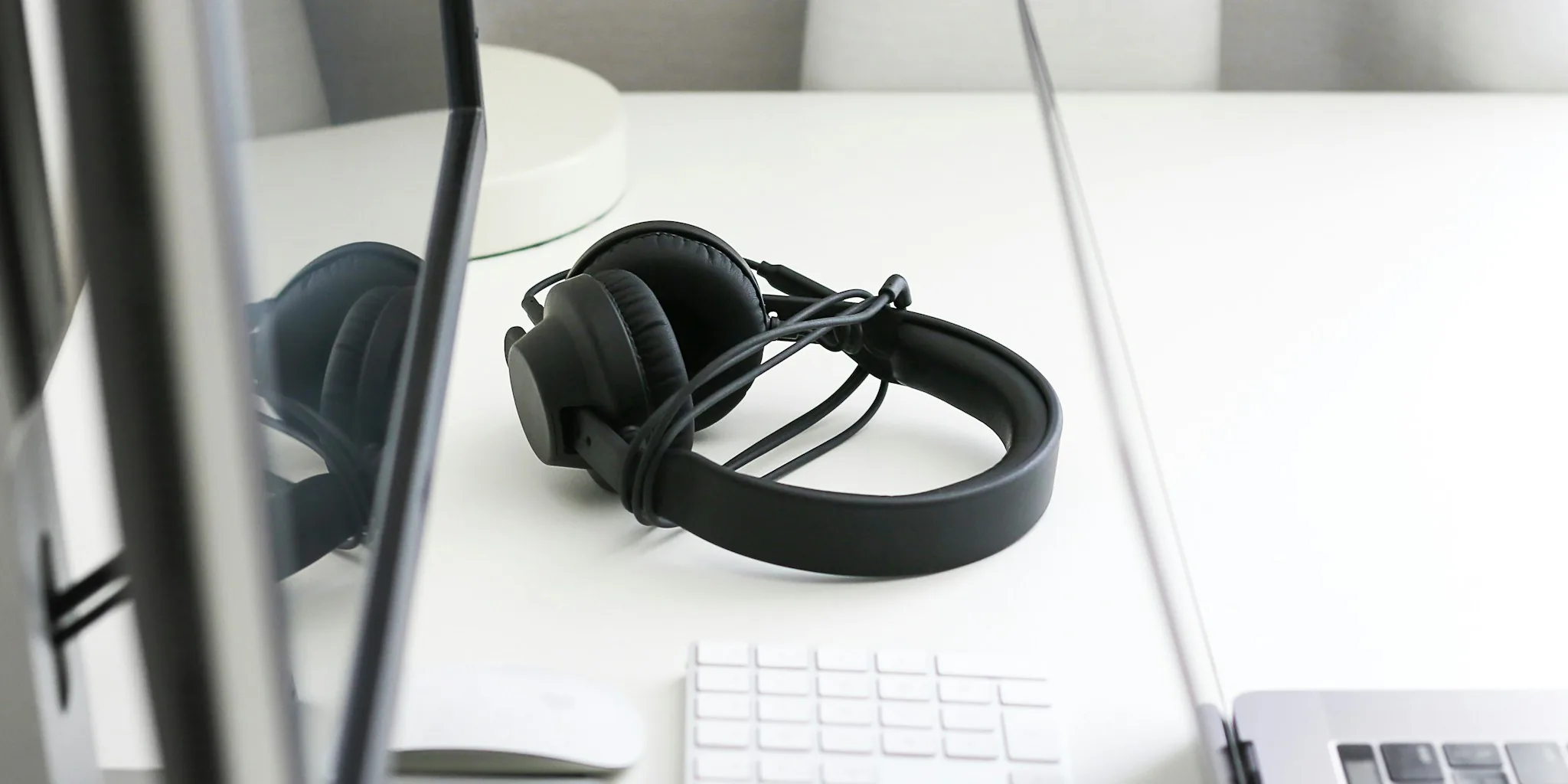
Even the best software adjustments can’t overcome poor hardware. If you’re listening through low-quality speakers or headphones, your improvements will be limited. Upgrading to quality headphones designed for your use case, whether commuting, workouts, or at-home listening, makes a dramatic difference. Over-ear active noise cancellation headphones provide excellent audio isolation and sound quality for focused listening, while true wireless options offer convenience for everyday use.
Fine-Tune Volume Normalization Settings
Both Apple Music and Spotify offer volume normalization features that adjust loudness across tracks. Sound Check in Apple Music and Volume Normalization in Spotify prevent jarring volume jumps between songs. However, some audio enthusiasts argue these features slightly reduce audio quality. Test both settings enabled and disabled to determine your preference. If you choose to use normalization, avoid the Loud setting in Spotify, as it further compromises quality.
Improving your iPhone audio doesn’t require expensive equipment or complex technical knowledge. By systematically adjusting streaming quality, using equalizers, maintaining your hardware, and exploring accessibility features, you’ll notice an immediate enhancement in every song, video, and call. Start with these seven tips today and discover how much better your iPhone can sound.




Write Your Review
No reviews yet. Be the first to share your experience!