


Wireless earbuds have revolutionized how we consume audio on the go, but battery life remains one of the biggest frustrations. If your AirPods feel like they’re losing charge faster than they should, you’re not alone. The good news: most rapid battery drain issues can be solved with practical steps you can take right now.
Understanding Your AirPods’ Battery Reality
Before you panic, understand how lithium-ion batteries work. Apple’s AirPods are designed to handle roughly 300 to 500 charge cycles before noticeable degradation occurs, which typically means two to three years of regular use. However, if your AirPods are newer, the drain problem usually stems from habits or settings, not hardware failure.
Check your model’s official battery specifications. For example, AirPods 4 deliver four hours of listening time with active noise cancellation enabled, or five hours with it turned off. Compare this to what you’re actually getting. If you’re falling short, one of the following fixes should help.
Tip 1: Stop Leaving Your AirPods Out of the Case
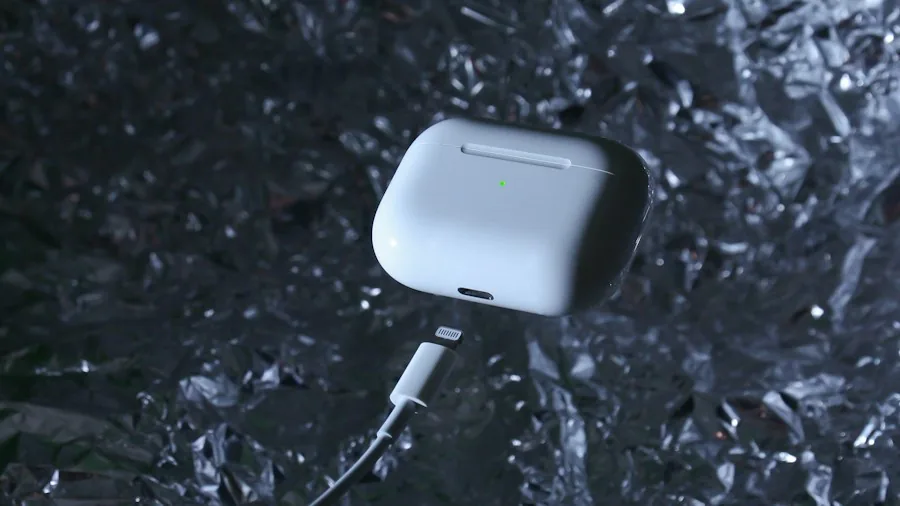
This is the most common culprit. When your earbuds aren’t in their charging case, they continue drawing power as long as they remain connected to your device or actively searching for a connection. The drain happens silently in your pocket or on your desk.
Make it a habit to return your AirPods to their case the moment you finish listening. This prevents unnecessary power consumption and keeps them ready for your next use.
Tip 2: Clean the Charging Contacts
Dust and earwax can block the tiny contact points inside your case, preventing your AirPods from charging properly even when they’re seated correctly. When contacts are dirty, you’ll notice uneven charge levels between the two buds, for example one showing 65 percent while the other reads 22 percent.
Use a soft, lint-free cloth to wipe your AirPods regularly. For deeper cleaning, Apple recommends using a soft-bristled toothbrush dipped in micellar water, focusing on the mesh areas, followed by a rinse with distilled water. For the case itself, a cloth lightly dampened with isopropyl alcohol works well, but ensure it dries completely before charging anything inside.
Tip 3: Disable Power-Hungry Features
Spatial Audio and active noise cancellation deliver premium listening experiences, but they demand more battery power. If you’re in a quiet environment or don’t need these features, turning them off will extend your listening time noticeably. Disabling Spatial Audio alone can add 30 minutes or more of playback on certain AirPods models.
This is especially useful when you know you won’t have access to a charger for several hours.
Tip 4: Reset Your AirPods
Sometimes a software glitch causes excessive battery drain. Resetting your AirPods can resolve this issue. Put them in their case, then navigate to Settings, Bluetooth, More Info, and select Forget This Device. Follow Apple’s model-specific instructions to complete the reset, then reconnect them as if they’re new. After reconnecting, monitor their battery performance to see if the issue improves.
Tip 5: Enable Optimized Battery Charging
When you first get new AirPods, enable Optimized Battery Charging immediately. Open your AirPods near your iPhone and go to Settings, Your AirPods, Battery, then toggle on Optimized Battery Charging. This feature learns your charging routine and reduces the time your AirPods spend at full charge, which extends overall battery lifespan. Newer models also include Charging Notifications, which alerts you to low battery levels before they become a problem.
Tip 6: Accept That Battery Health Diminishes Over Time
A battery showing 100 percent after 368 charge cycles isn’t the same as 100 percent on day one. Rechargeable batteries naturally lose capacity as they age, so older AirPods will deliver less listening time than they did when new. This is completely normal and doesn’t necessarily mean your earbuds are broken.
If your AirPods have reached their third year of regular use and still hold a charge below 80 percent of their original capacity, Apple offers battery service through AppleCare+ at no additional cost.
Tip 7: Check for Connection Issues
Sometimes what feels like battery drain is actually a connection problem. If your AirPods aren’t connecting to your iPhone properly, your device might be searching constantly, which drains the battery faster. Similarly, if your AirPods keep disconnecting, they’re consuming extra power trying to maintain the connection. Resetting your AirPods and ensuring Bluetooth is functioning smoothly can prevent this problem.
When to Contact Apple
If you’ve tried all these steps and your AirPods still drain abnormally fast, contact Apple Support. They can run diagnostics to determine if there’s a hardware issue. With AppleCare+ coverage, battery replacement is complimentary when your AirPods hold less than 80 percent of their original capacity.
By following these practical tips, you’ll maximize your AirPods’ battery performance and extend the life of your investment. Start with the easiest fixes first, then work your way down the list until you find what’s causing the drain.






Write Your Review
No reviews yet. Be the first to share your experience!