
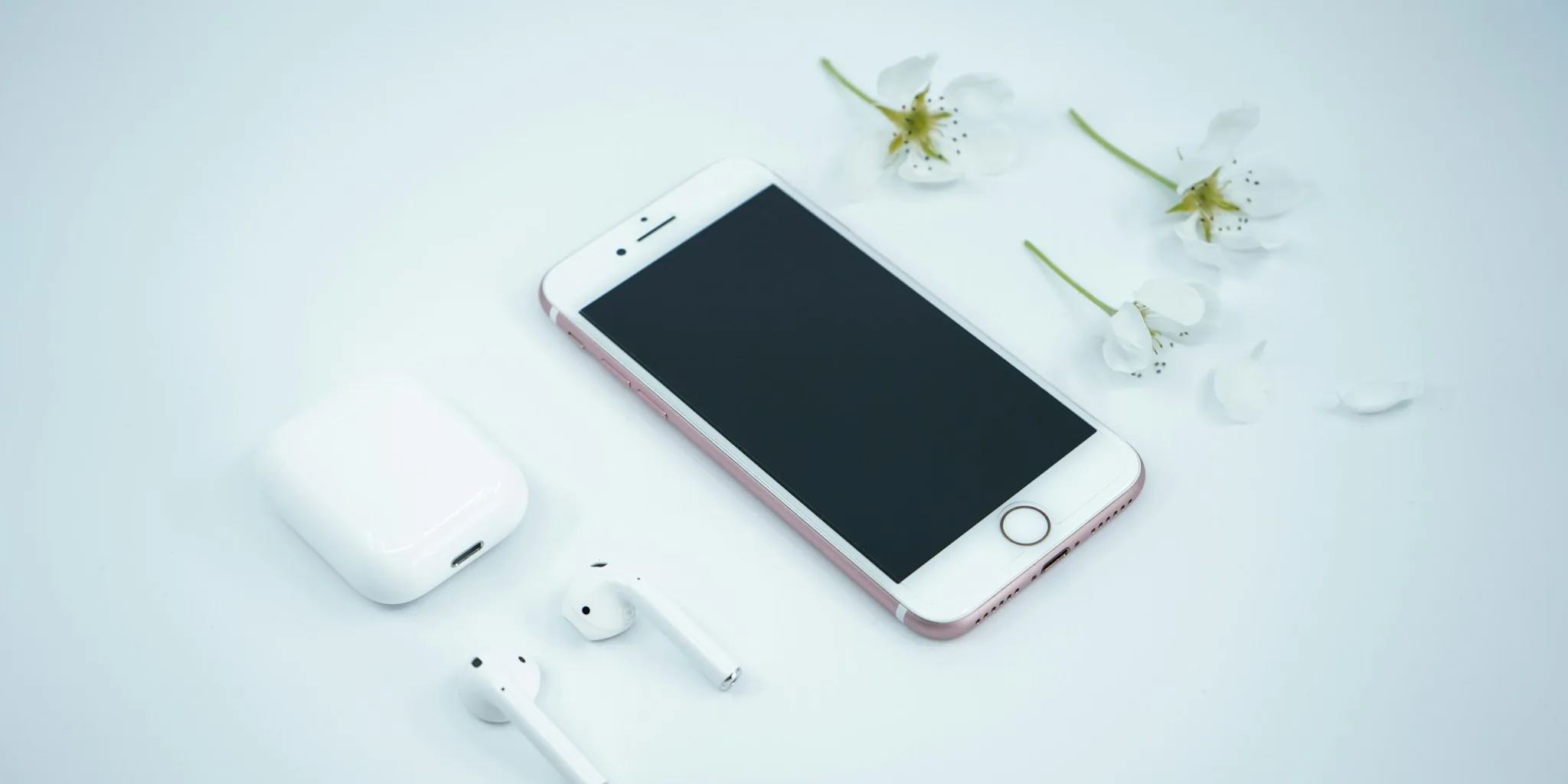

AirPods Connection Problems: What Buyers Are Experiencing
If your AirPods refuse to connect to your iPhone, you’re not alone. Connection issues are one of the most common complaints from Apple earbuds users, but the encouraging news is that most problems stem from simple configuration oversights rather than hardware defects. Understanding what causes these failures will help you troubleshoot faster and get back to your music and podcasts.
Battery and Charging Issues Are Often the Culprit
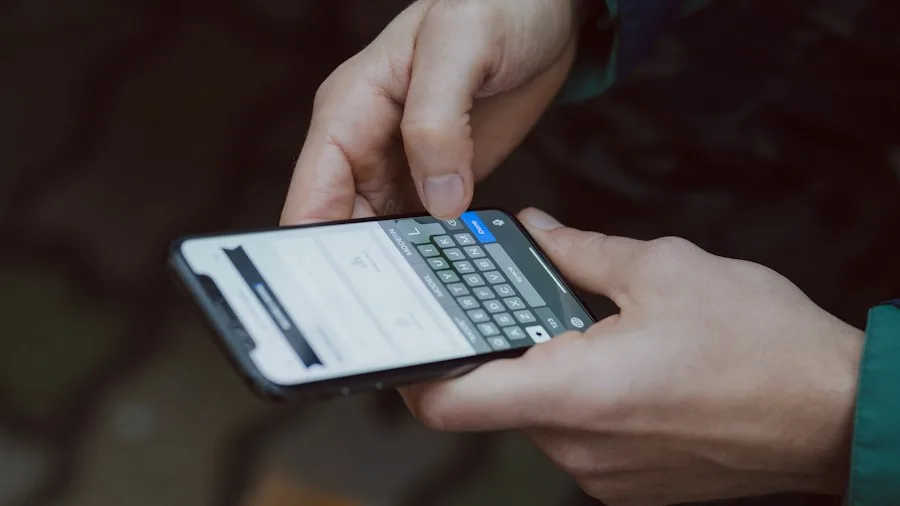
A completely drained battery is one of the primary reasons your AirPods won’t show up on your iPhone at all. When the earbuds or case run out of power, your device won’t even display a low battery warning. The solution is straightforward: place your earbuds in the charging case and plug it in for several minutes, then watch for indicator lights to appear.
Dirt and earwax buildup on the charging contacts can prevent proper power transfer, even when the case is plugged in. If your AirPods still fail to charge after a few minutes, clean both the earbuds and the interior of the charging case with a soft cotton swab. This simple maintenance step resolves more connection problems than you might expect.
Software and Firmware Mismatches Cause Connectivity Glitches
Your iPhone’s operating system and your AirPods’ firmware need to stay current. Outdated software on either device can trigger unexpected connection failures. Check your iPhone’s software by opening Settings, selecting General, then tapping Software Update. For your AirPods specifically, go to Settings, find your AirPods in the menu, scroll down to Version, and compare the number against Apple’s official specifications online.
If your AirPods firmware is outdated, place them in the charging case and leave them plugged in for approximately 30 minutes. Firmware updates typically install automatically during this charging period. This process is seamless and doesn’t require any action on your part beyond letting the battery charge.
Automatic Device Switching Creates Unexpected Problems
Apple’s automatic switching feature is convenient when it works as intended, but it frequently causes frustration. When your AirPods are signed into your Apple Account, they automatically switch between your iPhone, iPad, and Mac depending on which device is currently playing audio. A simple email notification on your Mac can divert your AirPods away from your iPhone without warning. In most cases, pressing play on your iPhone will switch them back immediately. However, if you need to maintain a consistent connection to one device, you may need to adjust these settings in your AirPods menu within Settings.
Additionally, stopping AirPods from constantly disconnecting requires checking specific settings that control how and when your earbuds switch between devices.
Step-by-Step Troubleshooting Guide
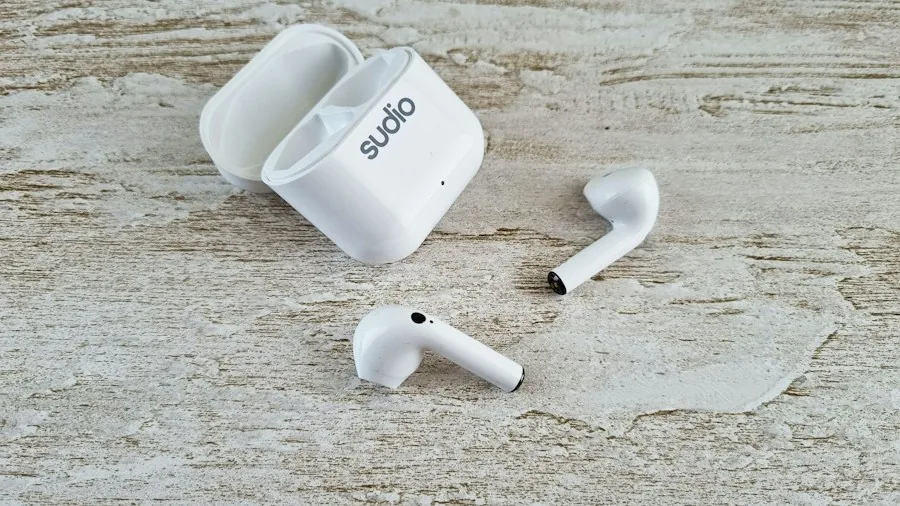
Start with the simplest fix first: verify that Bluetooth is enabled on your iPhone. Open Settings and locate the Bluetooth toggle, then switch it on. Insert your AirPods and check the Bluetooth list for them. Tap to connect, then confirm they appear in your Control Center under the AirPlay audio output menu in your media controls.
If this doesn’t work, reset your AirPods by placing both earbuds in the case and opening the lid. The reset process varies by model. For AirPods 4, AirPods 5, and AirPods Pro 3, double-tap the front of the case when the light is white, tap again when it flashes white, then tap a third time when it flashes faster. For older AirPods models, press and hold the button on the back of the case for about 15 seconds. For AirPods Max, simultaneously press and hold the Digital Crown and ANC button for 15 seconds. Your iPhone will display pairing instructions once the reset is complete.
If you’re considering switching to other audio options, several budget earbuds offer quality features worthy of consideration for those exploring alternatives.
When to Contact Apple Support
If none of these troubleshooting steps resolve your connection problems, you may be facing a hardware failure that requires professional intervention. Contact Apple Support to request a replacement. If your AirPods are still covered under the standard one-year limited warranty or if you purchased AppleCare+ protection, your replacement may be free. This safety net ensures that defective units don’t leave you without audio for an extended period.






Write Your Review
No reviews yet. Be the first to share your experience!