
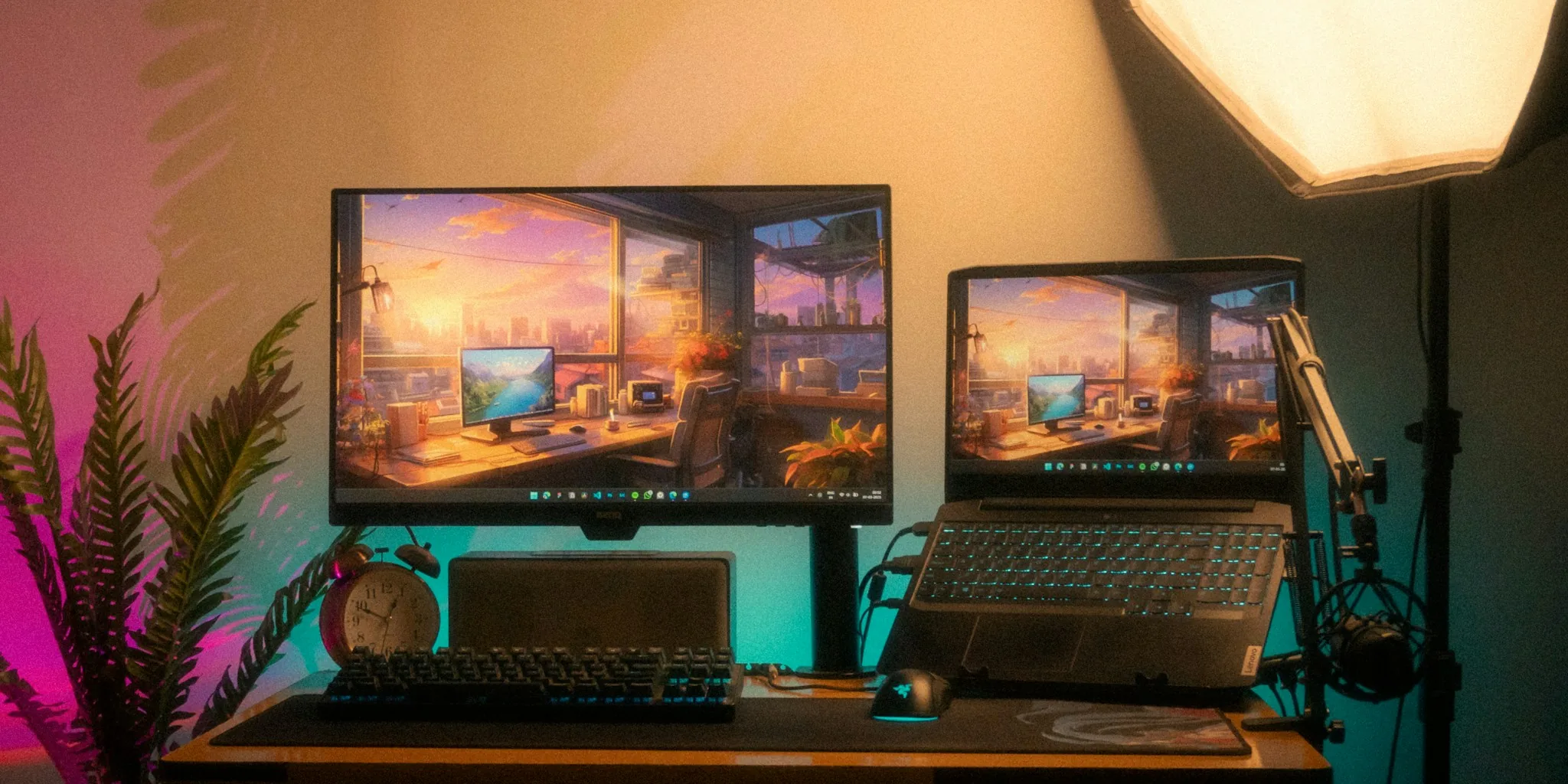

Modern laptop monitors deliver excellent performance, but they come at a cost, especially when you want a large screen, high resolution, or specialized features like 4K display or high refresh rates. Instead of purchasing an expensive dedicated monitor, many people overlook a simple solution sitting in their living room: your television. By connecting your laptop to a TV, you can expand your screen real estate affordably and unlock new possibilities for work, gaming, and entertainment.
Understand Your Connection Options
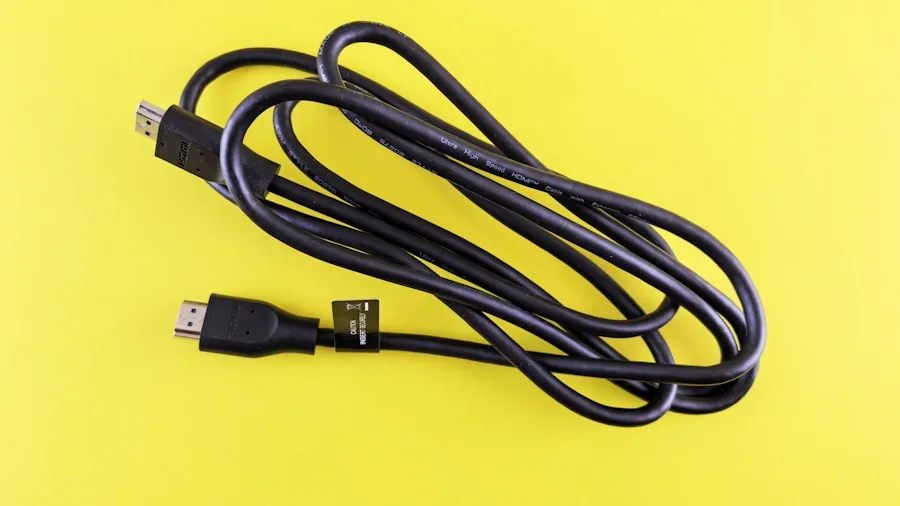
The easiest method to link your laptop to a television is through an HDMI cable. Simply plug one end into your laptop and the other into your TV, then select the appropriate input source on your remote. This approach requires no software installation and works across Windows, Mac, and Linux systems. If your laptop features Thunderbolt or DisplayPort connections instead of HDMI, invest in a USB-C-to-HDMI or DisplayPort-to-HDMI adapter, which typically costs between $10 and $15.
For cable-free connectivity, most modern smart televisions support wireless casting through AirPlay (Apple devices) or Google Cast (Android and Windows devices). This option provides convenience but may introduce noticeable input lag and resolution degradation due to compression during transmission. Samsung and LG televisions offer advanced remote PC access capabilities when enabled through dedicated apps, allowing you to control your computer from the TV interface without additional cables.
Configure Your Display Settings Properly
Once connected, you need to decide whether your TV will function as your primary screen or as an additional display in a multi-monitor setup. Access your operating system’s display settings to arrange your screens and configure scaling options. On Windows, right-click your desktop and select Display Settings, then use the Arrange Screens option. Mac users should navigate to System Preferences, then Displays, to access arrangement tools. Gaming laptops especially benefit from multi-monitor configurations when you’re streaming or using reference materials alongside your primary work.
Finding your computer’s IP address becomes necessary if you plan to use remote access features on compatible televisions. Windows users can access this information through Command Prompt by typing ipconfig, while Mac users check System Preferences under Network settings. ChromeOS and Linux users can locate IP addresses through their respective network menus, making remote access setup straightforward across platforms.
Optimize Picture Quality and Performance
The most critical factor for using a TV as a monitor is matching your laptop’s output resolution with your television’s input capabilities. If your laptop only supports 1080p output but your TV defaults to 4K, you’ll see blurry text and pixelated images. Navigate to your TV’s picture settings and manually select a resolution that matches your laptop’s maximum capability, whether that’s 1080p, 1440p, or 4K.
Reduce input lag and improve refresh rates by activating your TV’s PC picture mode if available. This specialized mode strips away image processing that causes delay during use. If your television lacks a dedicated PC mode, try Game Mode instead, which typically reduces response times and supports variable refresh rate technologies like AMD FreeSync or Nvidia G-Sync. Professional HP laptops used for design work can particularly benefit from proper refresh rate configuration when paired with a television display.
Weigh the Cost-Benefit Reality
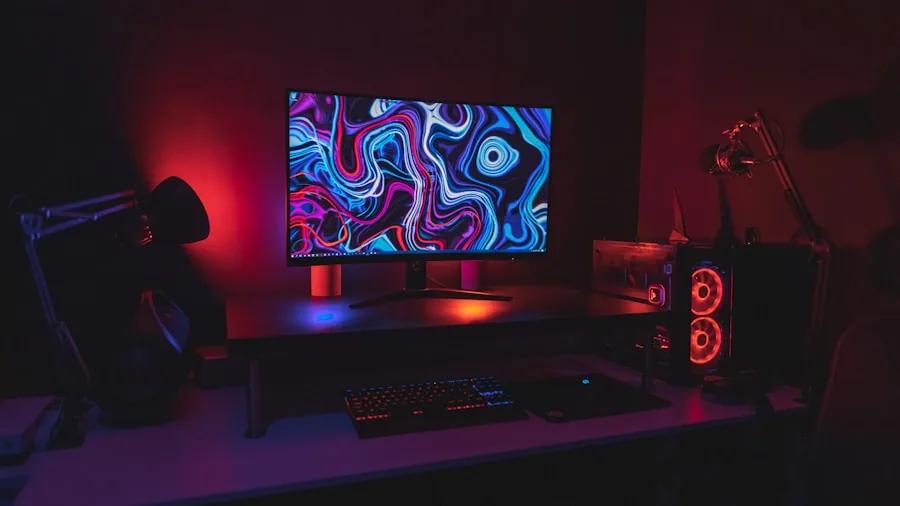
The primary advantage of using a television as a monitor is achieving substantially larger screen sizes at a fraction of traditional monitor pricing. A quality 4K television with excellent speakers might cost $100 to $200, while purpose-built gaming monitors with similar screen sizes demand $500 to $1,000 or more. You gain extra screen real estate and audio capabilities that standalone monitors often lack, making TVs attractive for streaming, multimedia editing, and multitasking scenarios.
However, accept that this solution involves trade-offs. Televisions prioritize image quality for content consumption rather than precision for computing tasks. Refresh rates top out around 60 Hz for most TV models, which proves acceptable for productivity work but creates frame rate issues in demanding video games. Response times lag behind specialized monitors, and connection options remain limited compared to purpose-built displays.
Consider When a TV Monitor Works Best
Use your television as a monitor for temporary needs like extra screen space during projects, emergency backup display solutions, or as a dedicated streaming and gaming station. Student laptops can benefit from television connectivity when presenting group projects or studying with expanded screen space. This approach works wonderfully for content creation requiring large canvases, spreadsheet work benefiting from extended viewing area, and casual gaming sessions where refresh rate limitations don’t affect enjoyment.
Avoid relying on TV-as-monitor setups for professional color work requiring accuracy, esports gaming demanding high refresh rates, or extended daily use where eye strain becomes a concern. The wireless casting option suits spontaneous presentations and casual use but falls short for reliable, responsive computing throughout your workday.





Write Your Review
No reviews yet. Be the first to share your experience!